5 Underrated YouTube Thumbnail Tools You Probably Never Heard Of
You already know the big names—Canva, Adobe Express, maybe Photoshop if you’re fancy. But here’s the thing: everyone using the same templates is why YouTube is drowning in lookalike thumbnails. The real game-changers? They’re flying under the radar.
I’ve dug through the noise to find five underrated thumbnail tools that solve specific problems the mainstream apps don’t even acknowledge exist. No fluff, no affiliate bias—just tools that actually work differently.
1. Click-Thumb: The No-Account, No-Watermark Browser Tool
The Problem It Solves: Every free tool wants your email, your credit card, or both. Half of them slap a watermark on your download unless you pay. Click-Thumb does none of that.
What Makes It Different:
This is a browser-based canvas editor built specifically for creators who don’t want friction . Launched just weeks ago, it runs entirely in your browser with no server uploads—your images never leave your device. That’s a privacy win most tools don’t offer.
The Features That Actually Matter:
- Pre-configured for every platform—YouTube thumbnails (1280×720), gaming templates for CS2, Minecraft, Fortnite, PUBG, Roblox, and Valorant, plus social sizes for TikTok, Instagram, Twitter/X, LinkedIn, and Facebook
- Zero account required—no signup, no trial, no watermark
- Pick a template, edit text and background, download—done in under two minutes
Who It’s For: Creators who post across multiple platforms and hate subscription fatigue. Gamers will especially appreciate the niche-specific templates that big tools like Canva often overlook.
The Catch: It’s brand new—Google hasn’t fully indexed it yet, so you’re getting in early . The template library isn’t as massive as Canva’s, but what it lacks in quantity, it makes up for in specificity.
2. Photopea: The Free Photoshop Clone Nobody Talks About
The Problem It Solves: Photoshop costs $23/month. GIMP is free but feels like using a spaceship cockpit. Photopea gives you Photoshop-level control in your browser for exactly zero dollars.
What Makes It Different:
Photopea is a full Photoshop clone that runs entirely in your browser. Layers, masks, blend modes, PSD file support, pen tool, curves—everything. For free. With ads you can ignore .
The Features That Actually Matter:
- Open and edit Photoshop (.psd) thumbnail templates from anywhere on the internet
- Layer-based editing—stack backgrounds, subjects, text, and effects with granular control
- Advanced text effects—bevel, emboss, stroke patterns that Canva can’t match
- Pen tool for precise subject cutouts—perfect for isolating faces from messy backgrounds
Pro Tip: Search “YouTube thumbnail PSD template free” on Google. Download any .psd file and open it directly in Photopea. You get a pro-quality template with editable layers—swap the background, change the text, export. Five minutes, zero cost .
Who It’s For: Creators who’ve outgrown Canva and want pixel-level control without the Photoshop price tag. If you’ve ever thought “I wish I could just adjust this one layer,” Photopea is your answer.
The Catch: There’s a learning curve. If you’ve never used Photoshop, Photopea will feel overwhelming. Start with Canva and graduate to Photopea when you want more control .
3. Leonardo AI: Custom Backgrounds That Don’t Look Like Stock Photos
The Problem It Solves: Stock photos look generic. Screenshots look amateur. Finding a unique background that doesn’t scream “I grabbed this from Unsplash” is surprisingly hard. Leonardo AI fixes that.
What Makes It Different:
Leonardo AI generates custom backgrounds from text prompts, and the free tier gives you 150 tokens per day (roughly 30 images) . Instead of hunting through stock libraries like everyone else, you describe what you want and get something genuinely unique.
The Features That Actually Matter:
- Dramatic backgrounds—explosions, neon cityscapes, epic landscapes that would take hours to composite manually
- Game-style environments—perfect when you can’t get a good in-game screenshot
- Abstract gradient backgrounds with depth and lighting that look professionally designed
- Upload + transform—take a real photo and turn it into a stylized version
Workflow That Works: Generate in Leonardo → download → upload to Canva as background → add text and overlays in Canva. Total time: 5 minutes extra, but the thumbnail looks 10x more unique than any stock photo .
Who It’s For: Gaming channels, storytelling channels, or anyone whose thumbnails rely on visually striking backgrounds. The visual difference between a Leonardo-generated background and a stock photo is night and day.
The Catch: Leonardo doesn’t handle text well—plan to add your typography in a separate design tool . Also, 150 tokens per day goes fast if you’re generating multiple variants.
4. Remove.bg: One-Click Background Removal That Actually Works
The Problem It Solves: Removing backgrounds from photos manually in Photoshop or GIMP takes time and skill. Most creators just want to cut themselves out of a messy background and slap themselves onto something better.
What Makes It Different:
Remove.bg strips backgrounds from photos in one click with scary accuracy. It’s not a full thumbnail tool, but it’s essential for the workflow . The free tier gives you lower-resolution outputs, but for 1280×720 thumbnails, the quality is perfectly fine.
The Features That Actually Matter:
- One-click background removal—no pen tool, no masking, no frustration
- Integrates with Canva and other design tools—remove the background, then design directly in your tool of choice
- Web-based—nothing to download, works from any device
Workflow That Wins: Remove background from a photo of yourself → upload the cutout to Canva → place over an AI-generated or custom background. This is how every “professional” YouTube thumbnail is made—you’re just doing it for free .
Who It’s For: Literally every creator who uses their face in thumbnails. If you’re not using Remove.bg, you’re wasting time.
The Catch: Free tier outputs lower resolution—fine for thumbnails, but don’t expect print quality. Also, busy or complex backgrounds (like event photos with lots of people) can confuse the AI about 40% of the time .
5. Green Hope AI: The Layered AI Tool That Fixes the “Almost Perfect” Problem
The Problem It Solves: You know the feeling. You generate an amazing AI background, but the text is garbage. With most tools, you have to save the image and start over in a separate editor. Green Hope AI fixes this with a unique layered approach .
What Makes It Different:
Most AI thumbnail tools treat AI-generated images as flat, uneditable files. Green Hope AI uses a layered approach—the AI generates the background, but the text is added as a separate, fully editable layer .
The Features That Actually Matter:
- Truly unique backgrounds—uses AI to generate a completely new background every time. No templates.
- Editable text is the core feature—fix typos, change fonts, add shadows, and move text freely without ever losing your background
- All-in-one workflow—combines AI generation and design editing into one seamless process
- Completely frictionless—100% free, with no ads or signup required
Who It’s For: Creators who want the creative power of AI without sacrificing practical control. If you’ve ever been frustrated by “almost perfect” AI images that you can’t edit, this tool was built for you.
The Catch: As a new tool, its library of design assets (shapes, stickers, etc.) is still growing compared to giants like Canva . It’s designed for a specific workflow—generating and editing in one place—not for building complex multi-layer compositions.
Quick Comparison Table
| Tool | Cost | Best For | Key Feature |
|---|---|---|---|
| Click-Thumb | Free | Gamers, multi-platform creators | No account, no watermark, platform-specific templates |
| Photopea | Free (ads) | Creators who want Photoshop control | Full PSD support, layer-based editing |
| Leonardo AI | Free (150 tokens/day) | Unique backgrounds | Text-to-image generation for custom scenes |
| Remove.bg | Free (limited) | Quick subject isolation | One-click background removal |
| Green Hope AI | Free | AI generation + text editing | Layered approach with editable text overlay |
Why These Tools Fly Under the Radar
Here’s the thing: most “best thumbnail tools” lists are just popularity contests. Canva dominates because it’s good enough for most people, and Adobe Express gets promoted because it’s Adobe.
But these five tools solve specific problems:
- Click-Thumb solves the “I just want to make a thumbnail without creating an account” problem
- Photopea solves the “I want Photoshop but I’m not paying $23/month” problem
- Leonardo AI solves the “all backgrounds look the same” problem
- Remove.bg solves the “removing backgrounds takes forever” problem
- Green Hope AI solves the “AI text always looks terrible” problem
None of them are trying to be everything to everyone. That’s exactly why they’re good.
How to Use These Tools Together
The real power is combining them:
- Generate a background in Leonardo AI
- Remove the background from your face photo in Remove.bg
- Composite everything in Photopea (or Canva for simpler needs)
- Use Green Hope AI when you want AI generation with editable text
- Use Click-Thumb when you need a quick, platform-specific design with zero setup
This workflow gives you professional-quality thumbnails that don’t look like everyone else’s—without spending a dime.
FAQs
What’s the best free YouTube thumbnail maker overall?
Canva’s free tier handles 90% of thumbnail needs—templates, text effects, background removal (one per day), and 1280×720 export . For most creators, it’s the best starting point. But the underrated tools in this article solve specific problems that Canva doesn’t address well, like generating unique backgrounds (Leonardo AI) or precise layer control (Photopea).
Is there a completely free Photoshop alternative for thumbnails?
Yes—Photopea runs in your browser and supports PSD files, layers, masks, and most Photoshop features at zero cost . You can even download PSD thumbnail templates from the internet and open them directly in Photopea.
Do any free tools let me generate AI backgrounds?
Leonardo AI gives you 150 free tokens per day, which translates to roughly 30 images—plenty for thumbnail backgrounds . The tool excels at generating dramatic, custom scenes that look unique to your channel.
What’s the easiest way to remove backgrounds for thumbnails?
Remove.bg does it in one click with surprisingly accurate results . The free tier is sufficient for YouTube thumbnails at 1280×720 resolution.
Why is Green Hope AI different from other AI thumbnail tools?
Most AI tools generate a flat image—if the text is wrong or you want to change fonts, you have to start over. Green Hope AI uses a layered approach where the text is a separate, editable layer . You can fix typos, change fonts, add shadows, and move text freely without regenerating the entire image.
Can I make gaming thumbnails with free tools?
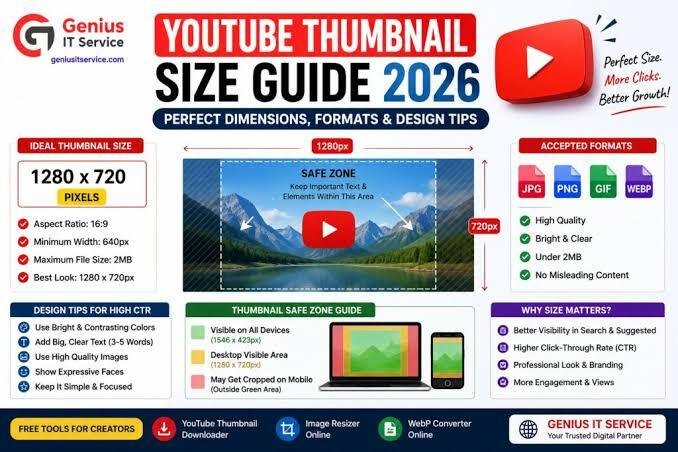
Yes—Click-Thumb offers dedicated templates for CS2, Minecraft, Fortnite, PUBG, Roblox, and Valorant, all pre-configured for YouTube dimensions . No account, no watermark, no uploads.