Best YouTube Thumbnail Makers with Built-in Templates for Beginners 2026 Guide
Your YouTube thumbnail is the first thing viewers see—and often the deciding factor between a click and a scroll. For beginners, designing a professional-looking thumbnail without design experience can feel daunting. That’s where thumbnail makers with built-in templates come to the rescue.
This guide covers the best YouTube thumbnail makers with templates, what makes them beginner-friendly, and how to create click-worthy thumbnails in minutes.
Why Use a Thumbnail Maker with Templates?
Starting from a blank canvas is intimidating, especially if you have no design background. Template-based thumbnail makers offer:
- Speed: Create a thumbnail in under five minutes
- Professional results: Templates are designed by pros with proven layouts
- No design skills needed: Simply swap photos, change text, and adjust colors
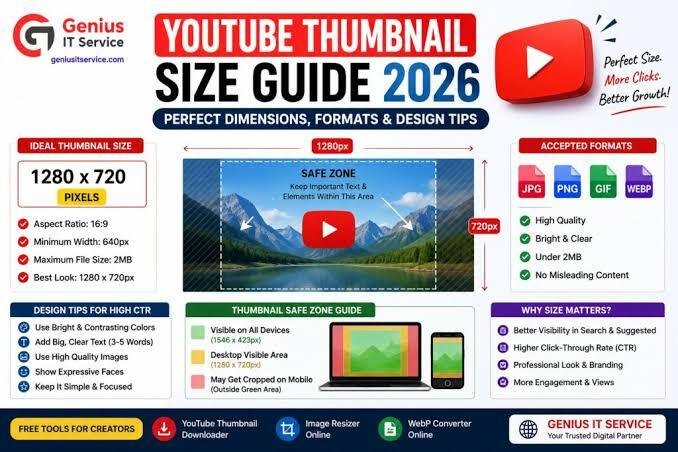
- YouTube-optimized dimensions: Templates come pre-sized at 1280×720 pixels
Pro Tip: YouTube recommends thumbnails at 1280×720 pixels with a minimum width of 640 pixels, under 2MB in size .
Best YouTube Thumbnail Makers with Templates
1. Canva – Best Overall for Beginners
Canva is the most popular choice for beginners, and for good reason. With over 10,000+ YouTube thumbnail templates, it offers unmatched variety across every niche—gaming, beauty, education, vlogs, and more .
Key Features:
- Drag-and-drop editor—no learning curve
- Thousands of free templates and design elements
- Text-safe zone guides so your text isn’t cut off
- Free tier covers most needs; Pro ($120/yr) adds premium assets and batch export
Best For: Creators who want maximum template variety and a polished, professional look without any design experience .
2. CapCut – Best All-in-One AI Thumbnail Workflow
CapCut combines AI image generation, smart editing, and ready-to-use templates in one workflow. It’s ideal for beginners who want speed without sacrificing creative control .
Key Features:
- Prompt-based AI image and poster generation
- Smart editing tools for fine-tuning
- Batch processing for multiple thumbnails
- Conversational AI workflow—describe what you want in natural language
- Generous daily free usage after login
Best For: Creators who want AI assistance to generate concepts and refine them without jumping between multiple platforms.
3. vidIQ Thumbnail Editor – Best for Click-Optimized Templates
vidIQ offers hundreds of templates designed specifically for high click-through rates (CTR). Each template follows proven, data-backed layouts that drive clicks .
Key Features:
- AI-powered editor that guides you through edits
- Templates across gaming, vlogs, tutorials, and popular creator styles
- Generate variations to find the perfect thumbnail
- Free version available with limited access
Best For: Creators who want data-driven templates proven to get clicks, plus analytics to track performance.
4. Adobe Express – Best for Professional Polish
Formerly Adobe Spark, Adobe Express brings professional-grade design to beginners. With 5,000+ YouTube templates and seamless Creative Cloud integration, it offers unmatched customization .
Key Features:
- Highly customizable templates with professional polish
- Access to Adobe Stock assets (with Premium plan)
- Cross-device compatibility—work on desktop or mobile
- Free tier; Premium at $100/yr
Best For: Creators who want a more polished, professional look and may eventually use other Adobe tools.
5. Fotor – Best for Quick, Simple Thumbnails
Fotor is an easy-to-use platform with 3,000+ templates and AI-powered tools. It’s available on web, desktop, and mobile, making it great for on-the-go creation .
Key Features:
- One-click AI tools (background removal, color enhancement)
- Hundreds of free, professionally-designed templates
- Face retouching for beauty and lifestyle content
- Free tier; Pro at $40/yr
Best For: Beginners who want a simple, fast tool that works across all devices .
6. Promeo – Best Mobile-First Thumbnail Maker
Promeo is a free app for iPhone and Android with 200+ styles of thumbnail templates covering trending YouTube topics .
Key Features:
- Templates for birthdays, travel, food, beauty, business, education, and more
- Cutout tools and full customization suite
- No distracting ads in the free version
- Share directly to YouTube, Instagram, Facebook, and TikTok
Best For: Mobile creators who want to design and publish thumbnails directly from their phone.
7. PicMonkey – Best for Branded Thumbnails
PicMonkey offers designer-made templates with powerful customization tools for backgrounds, text, and effects .
Key Features:
- Background eraser and outline tools to make images pop
- Curve text feature for creative typography
- Massive stock photo and video library
- Export directly to YouTube from the platform
Best For: Creators building a consistent brand across their channel.
Thumbnail Apps for On-the-Go Creation
If you prefer designing from your phone, these apps are worth checking out:
| App | Templates | Key Strength |
|---|---|---|
| Thumbnail Maker – Channel Art | 1,000+ | Wide variety, background removal |
| YT Thumbnails & Banner Maker | 500+ | 50+ fonts, filters, stickers |
| Ultimate Thumbnail Maker | Dozens | Text design presets, trending stickers |
Free Alternative: Use PowerPoint
Believe it or not, you can create professional YouTube thumbnails using Microsoft PowerPoint—and you probably already have it installed .
Why PowerPoint Works:
- You already know how to use it—no learning curve
- Remove Background tool is surprisingly effective
- Save custom designs as templates for consistent branding
- Completely free if you have Microsoft Office
Quick Setup:
- Set slide size to 13.333 inches × 7.5 inches (that’s 1280×720 pixels)
- Add a background image or screenshot from your video
- Insert bold text (Impact, Arial Black, or Montserrat work great)
- Use Remove Background on your photo
- Export as PNG
YouTube Thumbnail Design Tips for Beginners
1. Keep Text Short and Bold
Aim for 3-5 powerful words that spark curiosity. Use bold, sans-serif fonts that are readable at small sizes on mobile screens .
2. Use High Contrast
Light text on dark backgrounds (or vice versa) ensures readability. Never put red text on a blue background .
3. Include a Face with Emotion
Thumbnails with human faces—especially showing emotion—get significantly higher click-through rates .
4. Follow YouTube’s Guidelines
- Resolution: 1280×720 pixels (minimum 640 pixels wide)
- File size: Under 2MB for videos, 10MB for podcasts
- Formats: JPG, PNG, or GIF
- Aspect ratio: 16:9 for videos, 1:1 for podcast playlists
5. Avoid Policy Violations
Thumbnails must follow YouTube’s Community Guidelines—no nudity, hate speech, violence, or harmful content. Repeat violations can lead to removal of custom thumbnail privileges .
Comparison Table: Top Thumbnail Makers
| Tool | Templates | Free Tier | Pro Price | Best For |
|---|---|---|---|---|
| Canva | 10,000+ | Yes | $120/yr | Most beginners |
| Adobe Express | 5,000+ | Yes | $100/yr | Professional polish |
| vidIQ | Hundreds | Limited | Varies | Data-driven clicks |
| Fotor | 3,000+ | Yes | $40/yr | Quick, simple designs |
| CapCut | Yes | Generous | Varies | AI-powered workflow |
| Promeo | 200+ | Yes | N/A | Mobile-first creators |
| PicMonkey | Yes | Limited | Varies | Brand consistency |
FAQs
What is the best YouTube thumbnail maker for beginners?
Canva is widely considered the most beginner-friendly option. It has over 10,000+ YouTube thumbnail templates and a drag-and-drop interface that requires no design experience. The free tier covers most needs .
What size should a YouTube thumbnail be?
The recommended size is 1280×720 pixels with a minimum width of 640 pixels. Templates in most thumbnail makers come pre-sized to these dimensions .
Are there free YouTube thumbnail makers?
Yes! Canva, Adobe Express, Fotor, and vidIQ all offer free tiers. CapCut offers generous daily free usage after login. Most free versions include templates but may limit premium assets or batch export .
Can I make a YouTube thumbnail without design skills?
Absolutely. Template-based tools like Canva and Adobe Express let you simply swap photos, change text, and adjust colors—no design experience needed . You can even use PowerPoint if you have Microsoft Office .
What makes a good YouTube thumbnail?
A good thumbnail combines high contrast colors, clear readable text, compelling imagery (like expressive faces), and a clean layout that works at small sizes. Keep text to 3-5 powerful words and ensure all key elements are visible even on mobile screens .
Can I use AI to make YouTube thumbnails?
Yes. Tools like CapCut, Leonardo.AI, Ideogram, and Fotor offer AI-powered thumbnail creation. CapCut is particularly beginner-friendly because it combines prompt-based generation, templates, and editing in one workflow .
What are the YouTube thumbnail policies?
Thumbnails must follow YouTube’s Community Guidelines. They cannot contain nudity, hate speech, violence, or harmful content. There’s also a daily limit on custom thumbnail uploads—if you hit it, try again in 24 hours .
How do I upload a custom thumbnail to YouTube?
- Go to YouTube Studio
- Select Content from the left menu
- Click the video you want to edit
- Select an auto-generated thumbnail or click Upload thumbnail
- Click SAVE
Final Verdict
For most beginners, Canva is the safest and most versatile choice—massive template library, zero learning curve, and a generous free tier . If you want AI assistance and an all-in-one workflow, CapCut is the rising star . For click-optimized designs backed by data, vidIQ is worth exploring .
And remember: you don’t need expensive software. PowerPoint is a surprisingly capable free alternative that many creators overlook .
Start with templates, customize to match your brand, and watch your click-through rates grow.