How to Create High CTR YouTube Thumbnails Using Free Tools
Ever wondered why some videos get millions of views while others—with similar content—get ignored? The answer often lies in the thumbnail. In the crowded YouTube feed, your thumbnail is your storefront window. It’s the single most visible driver of click-through rate (CTR), a metric that YouTube’s algorithm weighs heavily when deciding whether to promote your video further .
The good news? You don’t need expensive software or a design degree to create thumbnails that get clicks. This guide walks you through a step-by-step process to design high-CTR thumbnails using powerful free tools, backed by data-driven psychology.
Why Thumbnails Are the Ultimate CTR Growth Lever
Before diving into the “how,” let’s understand the “why.” On YouTube, the battle for attention begins before the play button is hit.
- The Algorithmic Flywheel: A higher CTR tells YouTube that viewers find your video interesting. This increases the likelihood of your video being pushed into “Suggested” and “Browse” traffic. As CTR improves, impressions increase, which can further boost views—creating a powerful growth flywheel .
- Mobile Dominance: Over 70% of watch time occurs on mobile devices, where the thumbnail is visually dominant. A cluttered or blurry thumbnail is a death sentence on a small screen .
- The Science of Emotion: Research shows that strong sentiments in thumbnails, whether positive or negative, lead to more views. Viewer attention is captured by strong emotional expressions, bold colors, and curiosity-gap triggers .
Step-by-Step Guide to Creating Thumbnails with Free Tools
Let’s turn theory into practice. Here is a workflow for designing a professional, high-CTR thumbnail using free resources.
Step 1: Strategic Planning (Before You Design)
Designing the visuals without a strategy will likely result in a thumbnail that looks good but doesn’t perform well .
- Define Your Goal & Emotion: What do you want the viewer to feel?
- Curiosity: “Wait, what happened?”
- Shock: “No way!”
- Excitement: “I need to see this.”
- Pro Tip: A video titled “The One Tool Every Creator Needs” benefits from a thumbnail with a blurred-out object and a surprised expression to spark curiosity .
- Analyze Your Niche: Search for your topic on YouTube and look at the top 10 videos.
- What colors are they using?
- Are the faces expressive or calm?
- Do they use dramatic text, or rely solely on imagery?
Step 2: Gather Your Free Assets
You don’t need a professional camera for the perfect shot.
- Faces: Take a high-resolution selfie with your phone. Ensure your expression is exaggerated. Subtlety often doesn’t translate well on YouTube .
- Backgrounds/Objects: Use free stock photo sites like Pexels or Unsplash for high-quality visuals if you don’t have your own.
- Branding: Prepare your logo or a consistent color palette you want to use .
Step 3: Design with Free Tools
You have two main free avenues: AI-powered generators (great for speed and inspiration) and open-source editors (great for control).
Option A: AI-Powered Generators (For Speed & Ease)
These tools rapidly generate CTR-optimized designs from text prompts or uploaded photos.
- Gen Layers: A free, AI-powered tool that generates relevant images with text overlays just by inputting your video title and a description. It includes a built-in editor for adjustments .
- Thumbs.ai: Offers “Style Clone” to replicate successful thumbnail aesthetics and a “CTR Rater” that predicts performance before upload .
Option B: Open-Source Editors (For Control)
If you prefer hands-on control, these editors give you professional capabilities for free.
- Free Thumbnail Generator (GitHub): A lightweight tool with drag-and-drop image upload, 10+ font styles, a basic background remover, and auto-sizing to 1280x720px. It is 100% client-side, meaning no data collection and no watermarks .
- Canva (Free Version): While not open-source, Canva offers a robust free tier with specific YouTube thumbnail templates, a vast library of elements, and easy text overlays.
Step 4: Apply the “Thumbnail Heuristics”
Regardless of your tool, apply these design principles for maximum impact:
- Faces Are the Focal Point: Human faces capture attention almost immediately. Use a close-up of a face displaying a strong emotion .
- Short, Punchy Text: Limit text to 2-4 words. Use bold, sans-serif fonts like Impact or Montserrat. Imagine your text as a teaser, not a summary .
- The Contrast Power: Bright, saturated backgrounds (reds, yellows, blues) paired with complementary foregrounds create a “pop” that is hard to ignore. Netflix research shows color contrast is a top predictor of click behavior .
- The Hook (Intrigue vs. Clarity):
- Intrigue: Uses a cliffhanger phrase, blurred object, or question mark to make viewers want to solve the mystery .
- Clarity: Clearly shows exactly what’s inside (e.g., the result of a tutorial, a specific product) .
Step 5: Testing to Win
The best way to know if your thumbnail works is to test it.
- YouTube’s Native “Test & Compare”: YouTube’s own A/B testing tool lets you upload up to 3 thumbnails for a video. YouTube will rotate them and compare performance. Since 2024, this feature has expanded, making it the most reliable way to test . Even a 0.5% CTR difference can be statistically significant over millions of impressions .
- Thumbnail Tester: Use free tools like “YouTube Thumbnail Tester” to simulate how your thumbnail looks in a crowded YouTube feed across different devices (Desktop, Mobile, TV) before publishing .
Frequently Asked Questions
1. Is there a free tool to create YouTube thumbnails without watermarks?
Yes. Open-source tools like the Free Thumbnail Generator on GitHub are free, watermark-free, and require no signups . Mobile apps like “Thumbnail Maker” also offer watermark-free creation . Many AI tools like Gen Layers also offer free generations without watermarks .
2. What is the best free tool for A/B testing YouTube thumbnails?
YouTube’s native “Test & Compare” feature is the best free tool. It’s built directly into YouTube Studio and allows you to test up to 3 thumbnails against each other using real traffic . For simulation testing, “YouTube Thumbnail Tester” is a free online tool to preview thumbnails realistically .
3. How many words should I put on a YouTube thumbnail?
Stick to 2 to 4 words . The text should act as a teaser that supports the image, not a full title. Use bold, sans-serif fonts for readability on mobile.
4. How important are faces in YouTube thumbnails?
Extremely important. Eye-tracking studies show that faces are one of the most attention-grabbing elements in visual media . Research also indicates that exaggerated, emotional faces (shock, joy, suspense) guide the viewer’s gaze and effectively convey the video’s mood .
5. Do I need to be a designer to make good thumbnails?
No. Modern AI tools like Thumbs.ai or Gen Layers allow you to generate high-CTR thumbnails simply by describing your video. These tools handle the design principles (contrast, layouts, expressions) for you .
6. What are the key elements of a high-CTR thumbnail?
- High-quality visuals (no blurry or pixelated images).
- A clear focal point (usually a face or product).
- Color contrast (to stand out in the feed).
- Short, readable text (2-4 words max).
- Emotion (Curiosity, shock, or excitement).
7. What is the ideal YouTube thumbnail size?
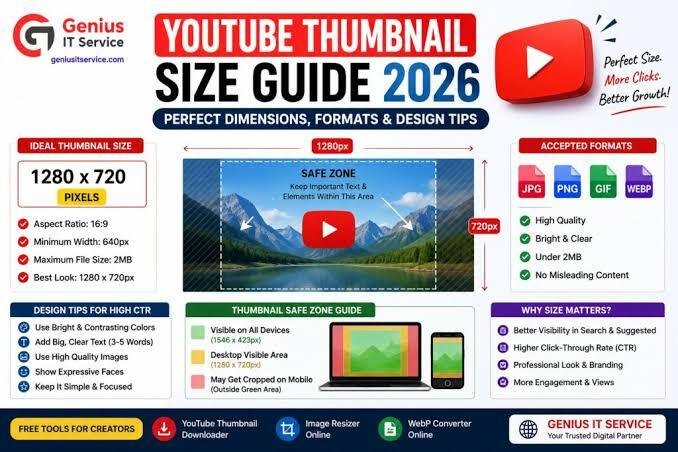
The standard and recommended size for YouTube thumbnails is 1280 x 720 pixels . This aspect ratio ensures your thumbnail looks crisp and fills the space correctly across all devices.
8. How can I make my text stand out in a thumbnail?
Use bold, sans-serif fonts. Add an outline, shadow, or stroke to the text to ensure it doesn’t blend into the background. A white outline can effectively make dark text pop on any image .